In the old days when we walked to school uphill both ways, we used to have to use actual books to look up words written in Kanji. The process involved guessing what the radical was for each Kanji, flipping through a huge tome, finding the readings, and flipping through another huge tome guessing which combinations of the readings applied to the word you were looking for. Luckily for you, we don’t need to do that anymore.
Looking up electronic words
If the word you’re looking for is on the computer whether it’s a website or email, you’re in luck. You don’t need to look up any Kanji at all.
If you’re using Firefox, go to the following url to install rikaichan: http://www.polarcloud.com/rikaichan/
Install the main extension and a dictionary (Japanese-English is probably the most complete) and restart Firefox.
If you use Chrome, you can find a similar extension called rikaikun.
Now, if you run into a gnarly Kanji like the one below, you just have to turn on rikaichan and mouse over it.
憂鬱
Incidentally, you can use rikaichan on all the vocabulary on this site. I never would have spent those countless hours adding the popups manually if rikaichan existed at the time.
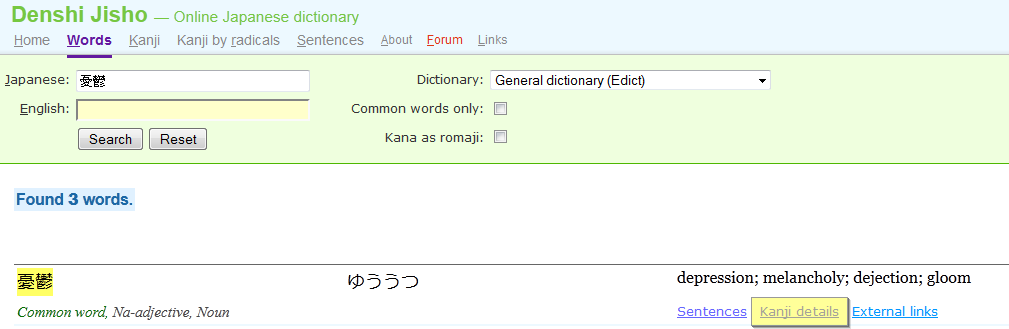
If you want to learn more about the Kanji such as the stroke order (very important!), you can simply copy+paste the word into jisho.org. You may also want to do this if rikaichan returns multiple readings and you are unsure which one to use. The dictionary labels more common readings as “Common word”.
Assuming you searched for a real word, you should see an “Kanji details” button that will automatically look up all the Kanji in the selected word.
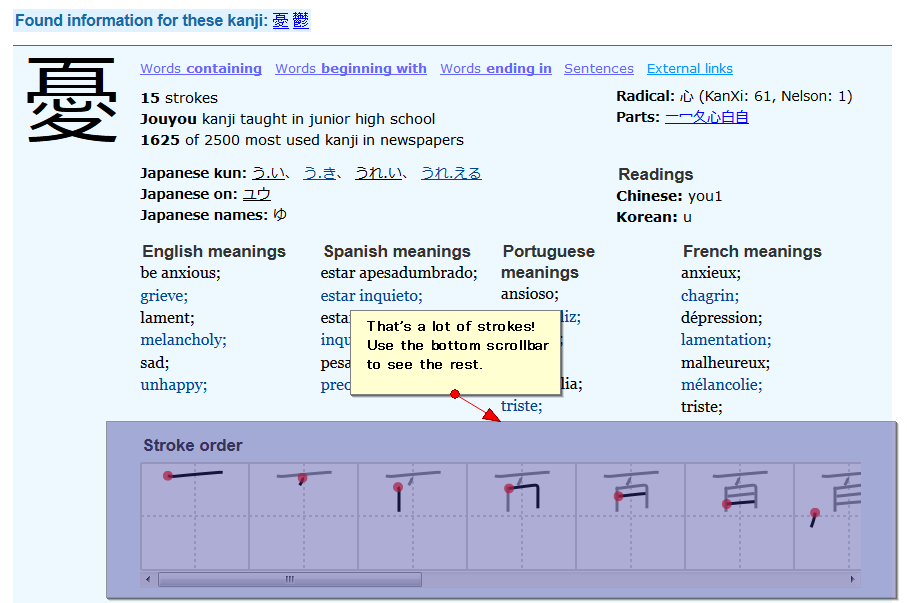
Make sure to check the stroke order image. The red dot shows where each stroke starts.
Looking up printed words
If you need to look up a word that’s written on (god-forbid) paper or some other non-electronic medium where you can’t copy+paste, you need to go through a couple more steps.
First of all, most of the newer electronic dictionary models from brands such as Casio, Sanyo, and Canon now have a stylus that allows you to write the Kanji directly. It may be a bit expensive especially outside of Japan, but I think it’s a worthy investment for the serious Japanese learner who doesn’t want to have to read books sitting next to a computer. However, if you’re already paying for an iPhone or other smart phone with internet access, that’s another option.
Or you can keep reading to see how you can do it for FREE!
New word, same Kanji
If you happen to already know other words that use the same Kanji, all you need is a bit of creative mixing and matching. For example, if you don’t know 「決定」 but you know 「決める」 and 「定期」, you can just type the words you do know and delete the unwanted characters. This technique is particularly useful for those tricky readings like 「仲人」. Just type 「仲間」(なかま) and [人」(ひと), delete 「間」, and hit search.
No freakin’ clue
Now if you’re trying to find a word with Kanji you’ve never seen before, you need to find each one and stitch the word together using copy+paste.
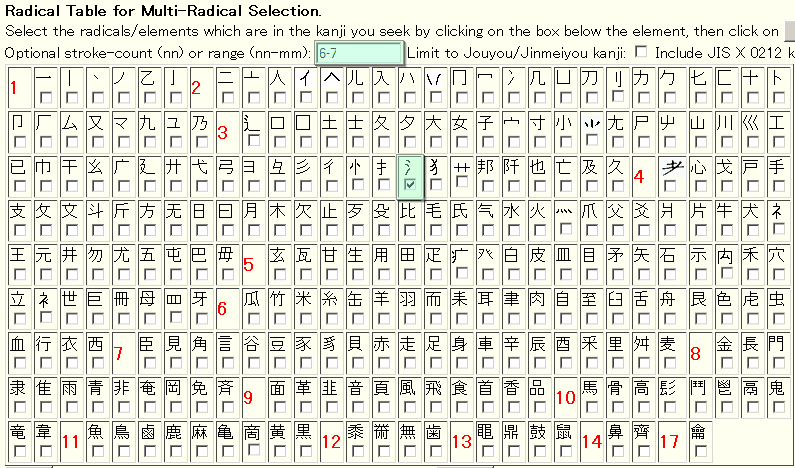
The multi-radical Kanji search is one of the easiest ways to find Kanji. No more do you have to remember which arbitrary radical the powers that be chose to be THE radical for the Kanji. You can search on any of them. You may also want to try http://jisho.org/kanji/radicals/. It has a nicer interface and offers real-time search results.
In order to narrow down your search, you’ll probably want to add in the stroke number. You can be lazy and just do a rough guess by providing a range but you might have to sort through a larger list.
Here, I searched for 「決」 by selecting the water radical with a range of 6-7 strokes.
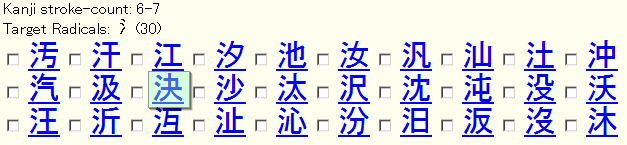
I do get a fairly sizable list but it’s not to hard to go through the list to find the Kanji I want. If you’re confident that it’s a Jouyou or Jinmeiyou Kanji (a list of common characters compiled by the Japanese government), you can also check the “Limit to Jouyou/Jinmeiyou kanji” box. This cut my search result to only 17 candidates.
Now all you need to do is copy+paste it somewhere either in another tab or text editor and find 「定」 using any technique. Once you have all the Kanji you need, you can copy+paste them together to form 「決定」 and search as before.
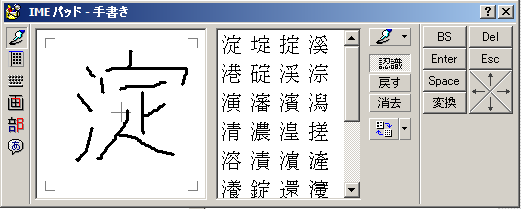
If you really can’t find the Kanji because you can’t identify any radicals and there are way too many characters with the same stroke order, the last ditch effort is to use the IME pad (or other equivalent depending on your OS).
You need to be in an area where you can type text such as the search box in Japanese input mode. Click the pad icon on your IME toolbar and select the first option. Mine says 「手書き」 but yours may be in another language.
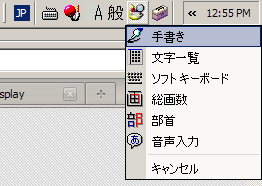
Clear the drawing by pressing the 「消去」 button and draw the character using your mouse. Click the character you want in the box to the right of your drawing. It will type that character in the area you were at when you opened the pad.
WWWJDIC Mirrors
If you find the main WWWJDIC website a bit slow at times, you might want to try a mirror closer to your location. I found that the USA mirror was a LOT faster for me compared to the main site.
A list of mirrors can be found here:
http://www.csse.monash.edu.au/~jwb/wwwjdicmirrors.html